
Appearance
Invoices
The Invoices section manages all purchase invoices raised against your vendors.
Permission required:
Invoice:Read(to view),Invoice:Create/Update/Delete(to modify)
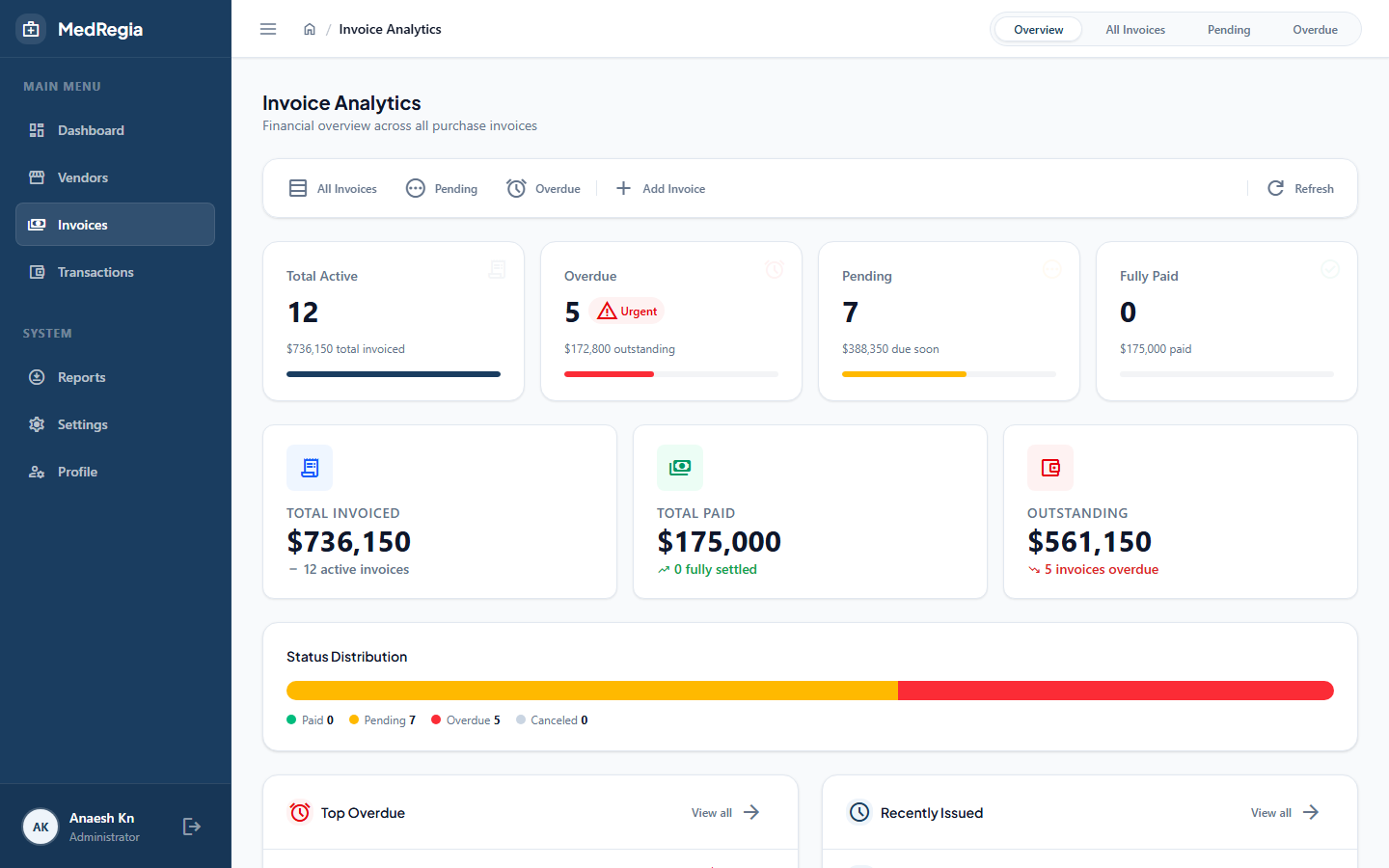
Understanding Invoice Status
Every invoice has a computed status — it is calculated automatically based on the invoice's data:
| Status | Badge Colour | Meaning |
|---|---|---|
| PartiallyPaid | 🟡 Amber | Some payments recorded, but balance remains |
| FullyPaid | 🟢 Green | All payments collected — pendingAmount = 0 |
| Overdue | 🔴 Red | Due date has passed and amount is still outstanding |
| Canceled | ⚫ Grey | Invoice was soft-deleted |
TIP
You don't set the status manually — it updates automatically as you record payments.
Viewing Invoices
Navigate to Invoices in the left sidebar.
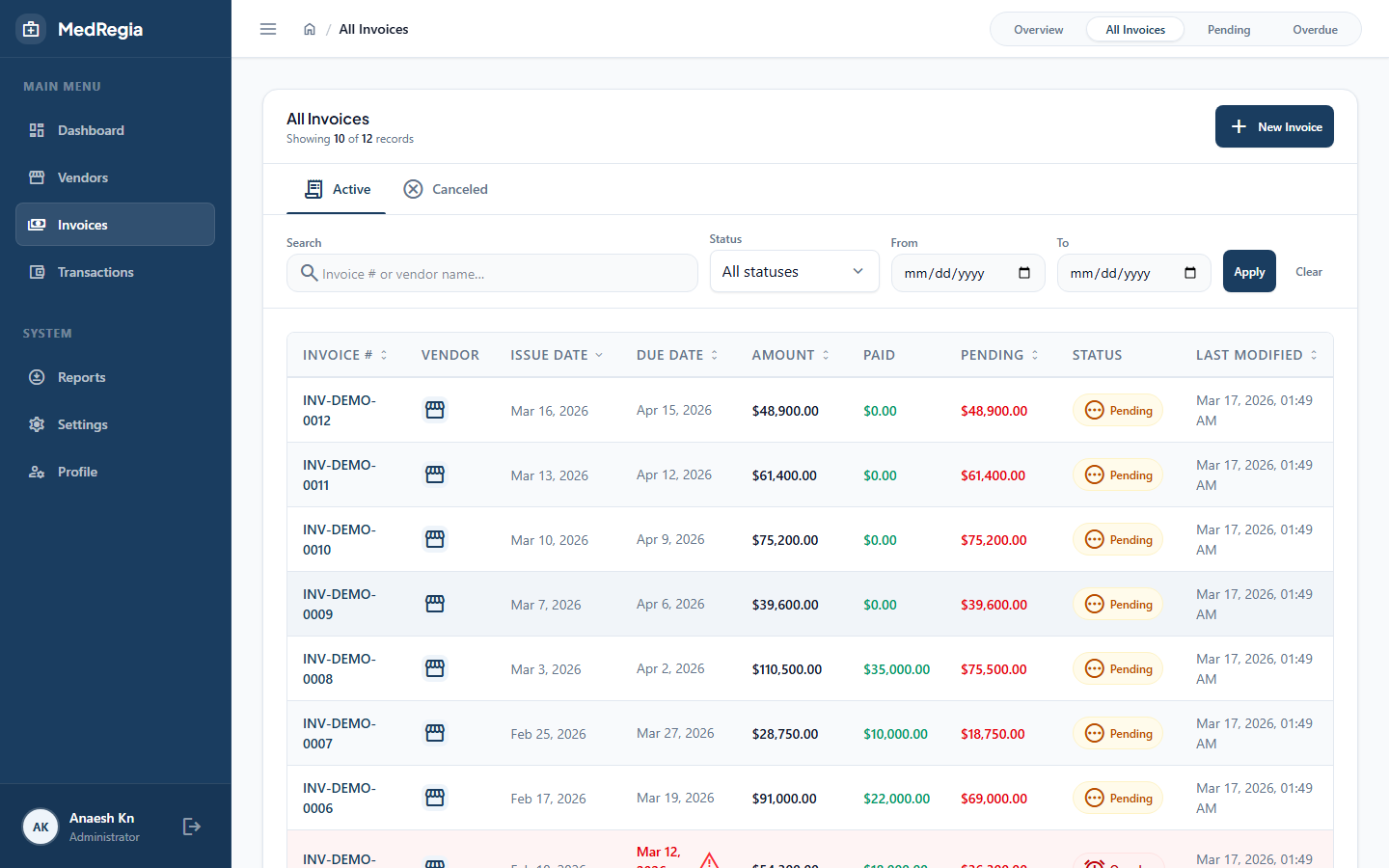
Filtering Options
| Filter | Description |
|---|---|
| Search | Matches against invoice number or vendor name |
| Status | Filter by FullyPaid, PartiallyPaid, Overdue, or Canceled |
| Vendor | Show invoices for a specific vendor |
| Date Range | Filter by invoice date (From / To) |
| Amount Range | Filter by minimum and maximum invoice amount |
| Sort | Sort by invoice date, due date, amount, pending amount, or vendor name |
Pending Invoices View
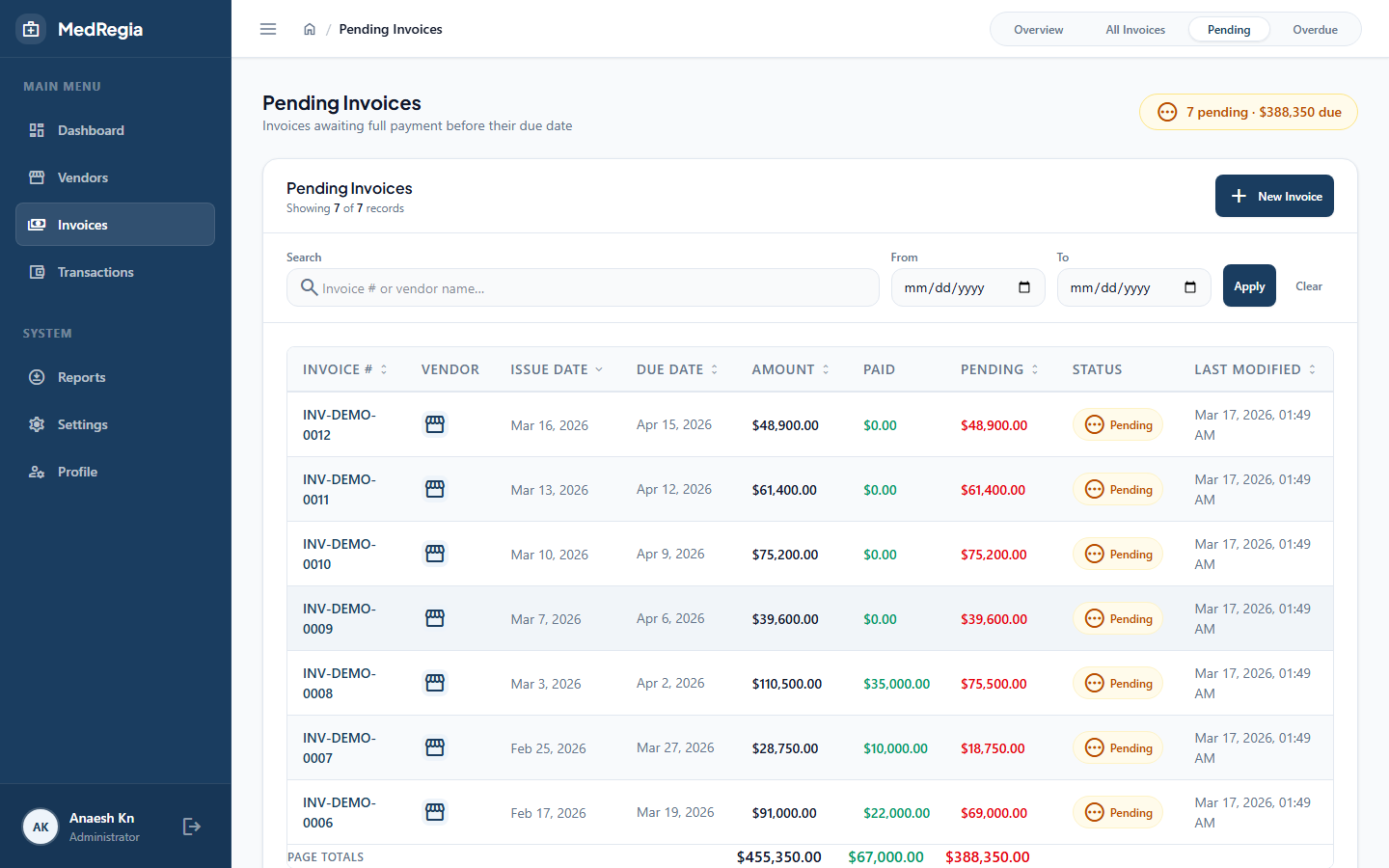
Click Pending in the left sidebar (under Invoices) to see only invoices that still have an outstanding balance — i.e. invoices with status PartiallyPaid or Overdue. This is the most actionable view when deciding which invoices to pay next.
Overdue Invoices View
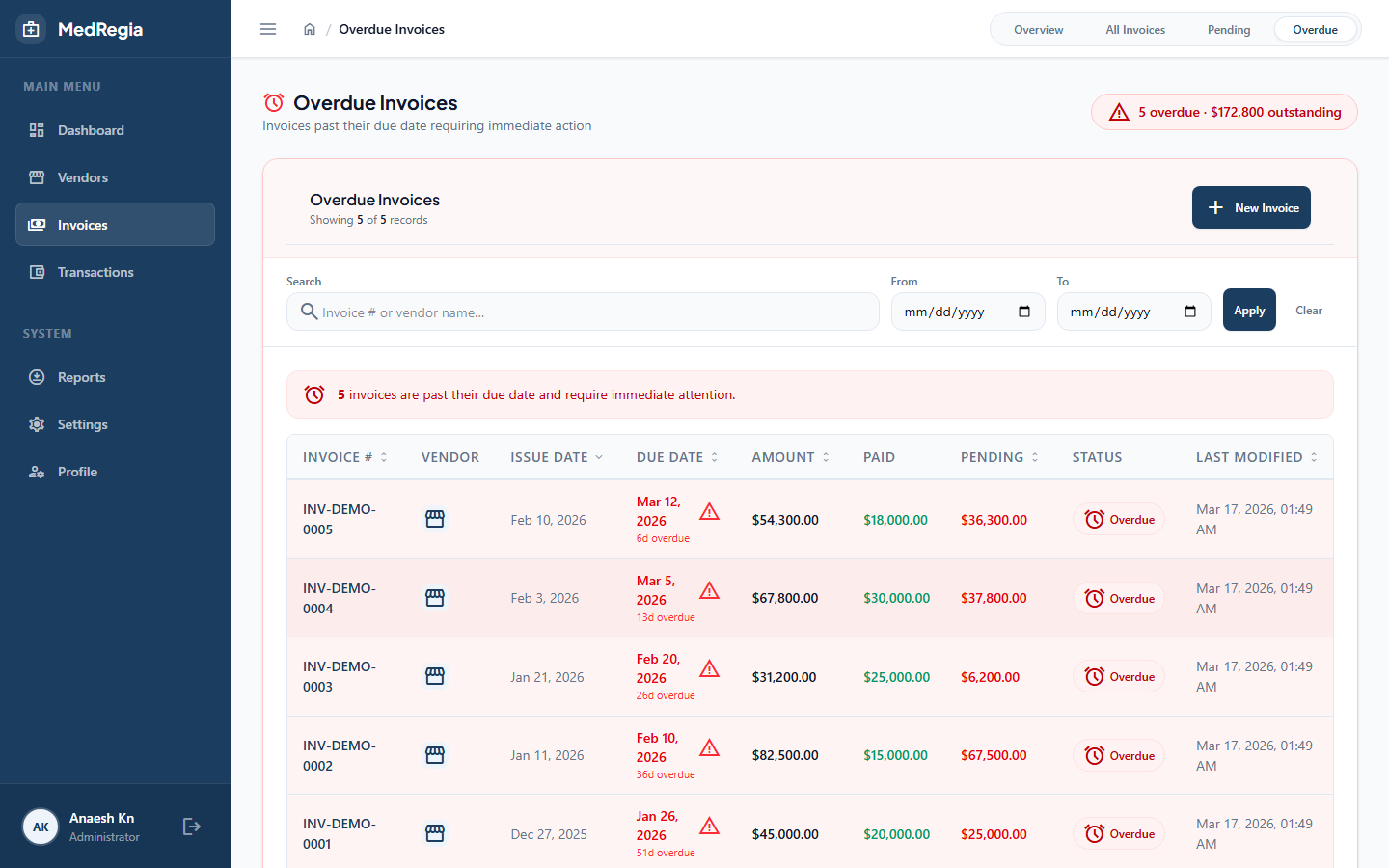
Click Overdue in the left sidebar to see only invoices whose due date has passed and that still have an unpaid balance. Prioritise these to avoid supplier disputes.
Creating an Invoice
- Click + New Invoice
- Fill in:
- Vendor (required) — select from the dropdown
- Invoice Number (required) — your supplier's invoice reference number (must be unique)
- Amount (required) — total invoice amount
- Invoice Date (required) — date on the invoice
- Due Date (required) — payment deadline
- Description — optional notes
- Click Save
Invoice Detail Page
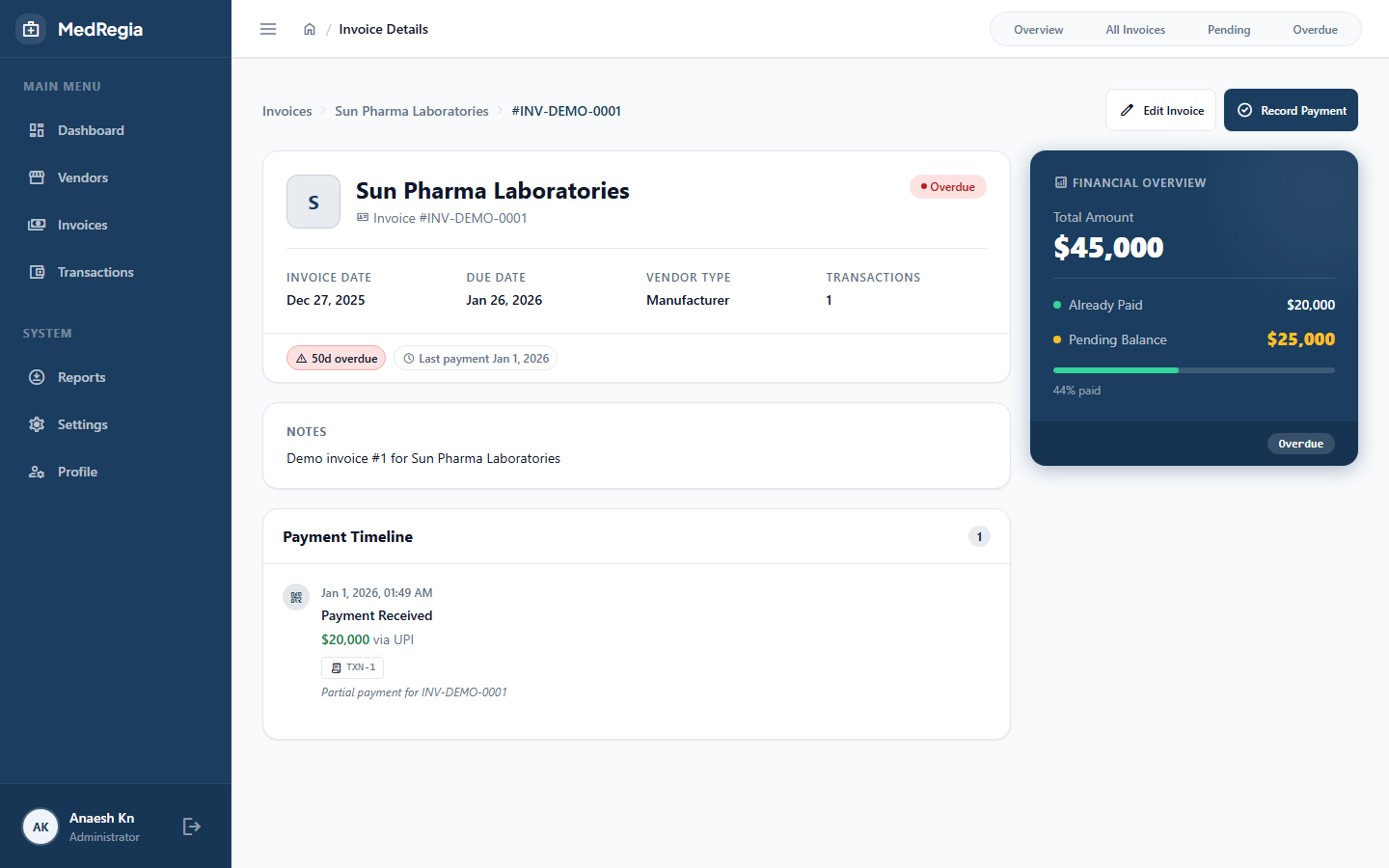
The invoice detail page shows:
- All invoice fields
- Paid Amount — total of all transactions recorded
- Pending Amount —
amount − paidAmount - Status — computed from the above
- Transactions tab — all payments against this invoice
Recording a Payment
To record a payment against an invoice:
- Open the invoice detail page
- Go to the Transactions tab
- Click + Add Payment
- Fill in the transaction form
Editing an Invoice
- Open the invoice detail page
- Click Edit
- Update fields and click Save
Canceling an Invoice
Invoices are soft-deleted (status becomes Canceled):
- Open the invoice detail page
- Click Cancel Invoice
- Optionally enter a reason
- Confirm
WARNING
Canceling an invoice does not delete its payment transactions — those remain in the system.
Downloading the Invoice Report
Click Export Excel on the invoice list page to download a .xlsx file.
Permission required:
Invoice:Read