
Appearance
Profile
Your Profile page lets you update your personal information and — if you are an administrator — your pharmacy's details.
Access it by clicking your name or avatar in the top-right corner of the app and selecting Profile, or by using the Profile link in the left sidebar.
Personal Profile
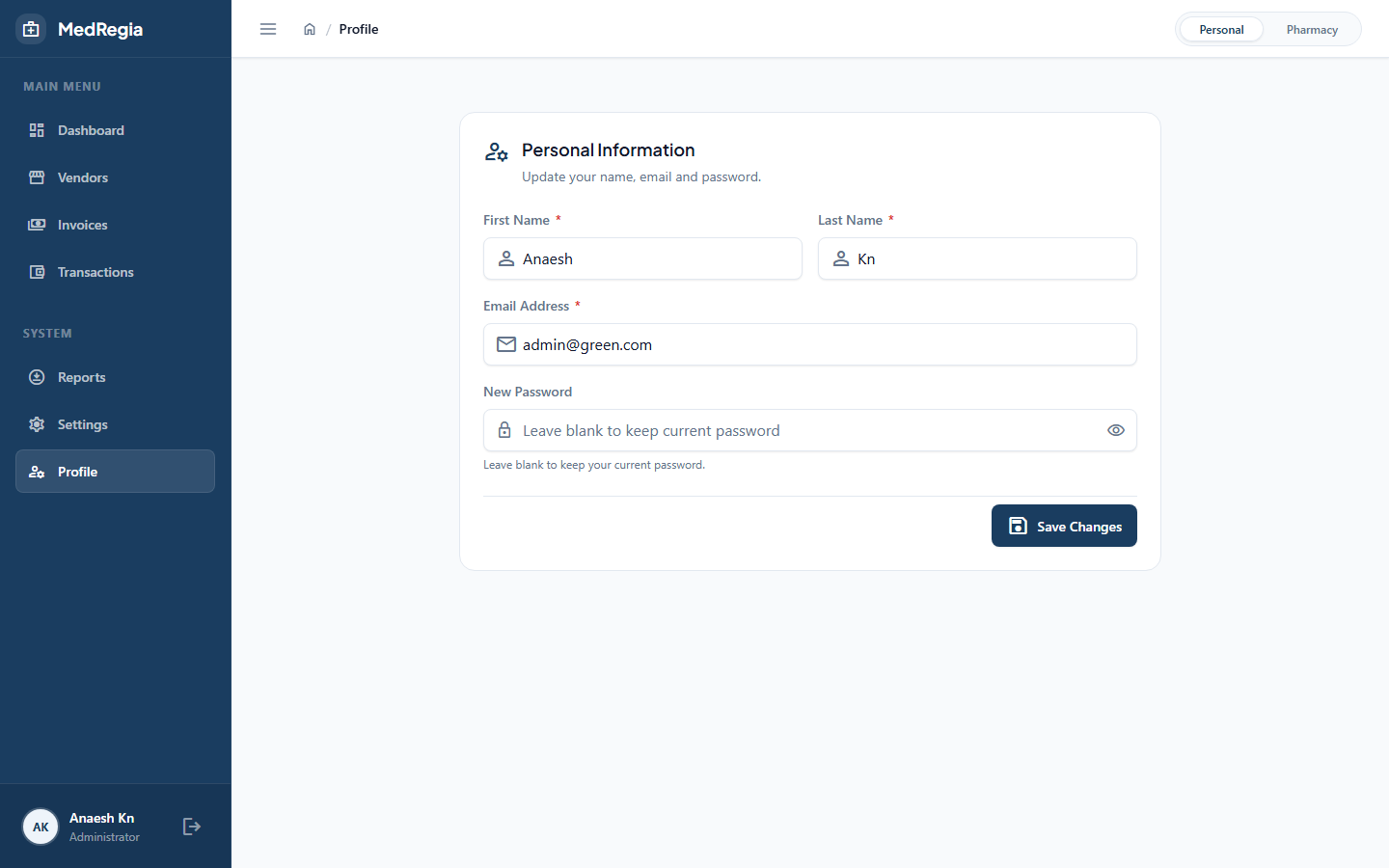
The Personal tab is available to every logged-in user. Here you can:
| Field | Description |
|---|---|
| Full Name | Your display name shown throughout the app |
| Your login email address | |
| Current Password | Required when changing your password |
| New Password | Leave blank if you do not want to change your password |
| Confirm New Password | Must match the new password field |
Updating Your Name or Email
- Click your avatar / name → Profile (or navigate via the sidebar)
- Edit the Full Name or Email field
- Click Save Changes
A success toast confirms the update.
Changing Your Password
- Open the Personal tab
- Enter your Current Password
- Enter and confirm your New Password
- Click Save Changes
WARNING
You must provide your current password any time you update your profile — even if you are only changing your name or email.
Pharmacy Profile
Admin only. This tab is only visible to users with the
is_adminclaim. Regular users are redirected to the Personal tab if they navigate here directly.
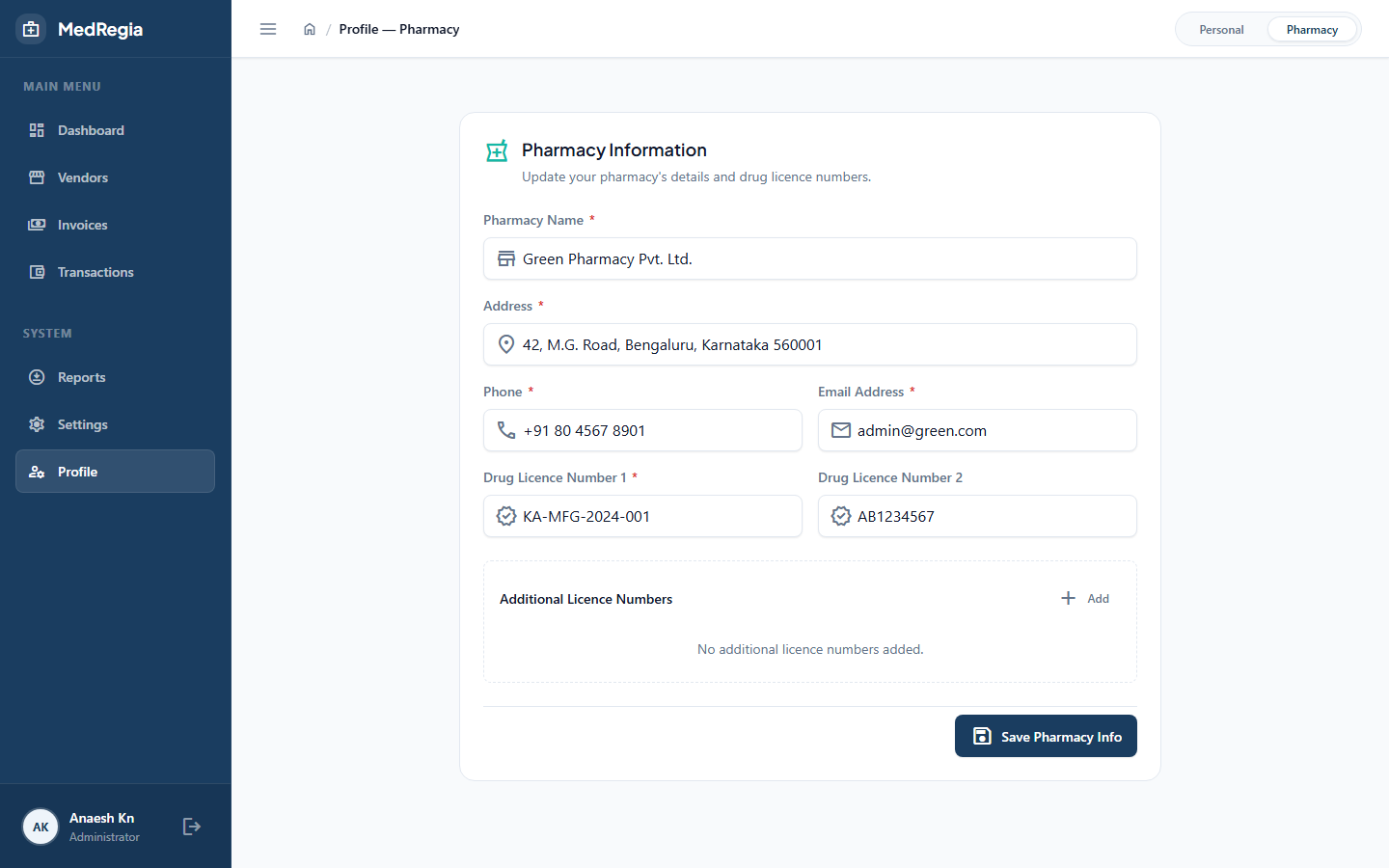
The Pharmacy tab lets the administrator update the pharmacy's business information that is displayed across the application.
| Field | Description |
|---|---|
| Pharmacy Name | The registered name of the pharmacy |
| Address | Street address |
| Phone | Contact phone number |
| Business contact email | |
| License Number | Pharmacy licence / registration number |
Updating Pharmacy Information
- Open Profile → Pharmacy
- Edit the relevant fields
- Click Save Changes
A success toast confirms the update. The new pharmacy name is reflected immediately in the app header.
TIP
Keep the pharmacy name and licence number up to date — they appear on exported reports and invoices.