
Appearance
First-Run Setup (Onboarding)
When MedRegia is launched for the first time — with no existing data — it automatically redirects to the onboarding wizard at /onboarding.
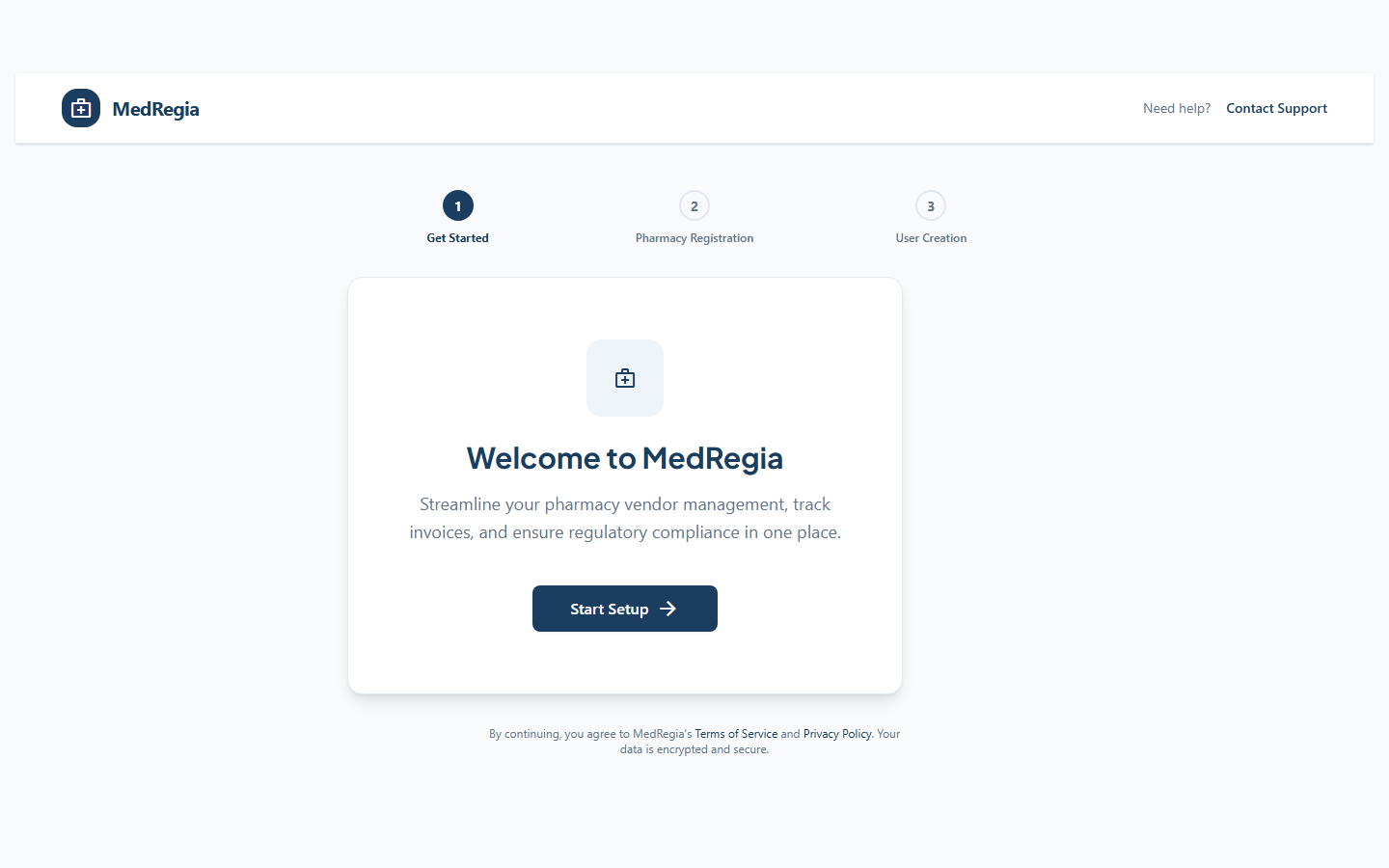
What the Setup Does
The onboarding wizard creates two things in a single step:
- Your Pharmacy — the
OwnPharmacyvendor record representing your own business - Admin Account — the first administrator user who can log in and set up the rest of the team
Step-by-Step
Step 1: Pharmacy Details
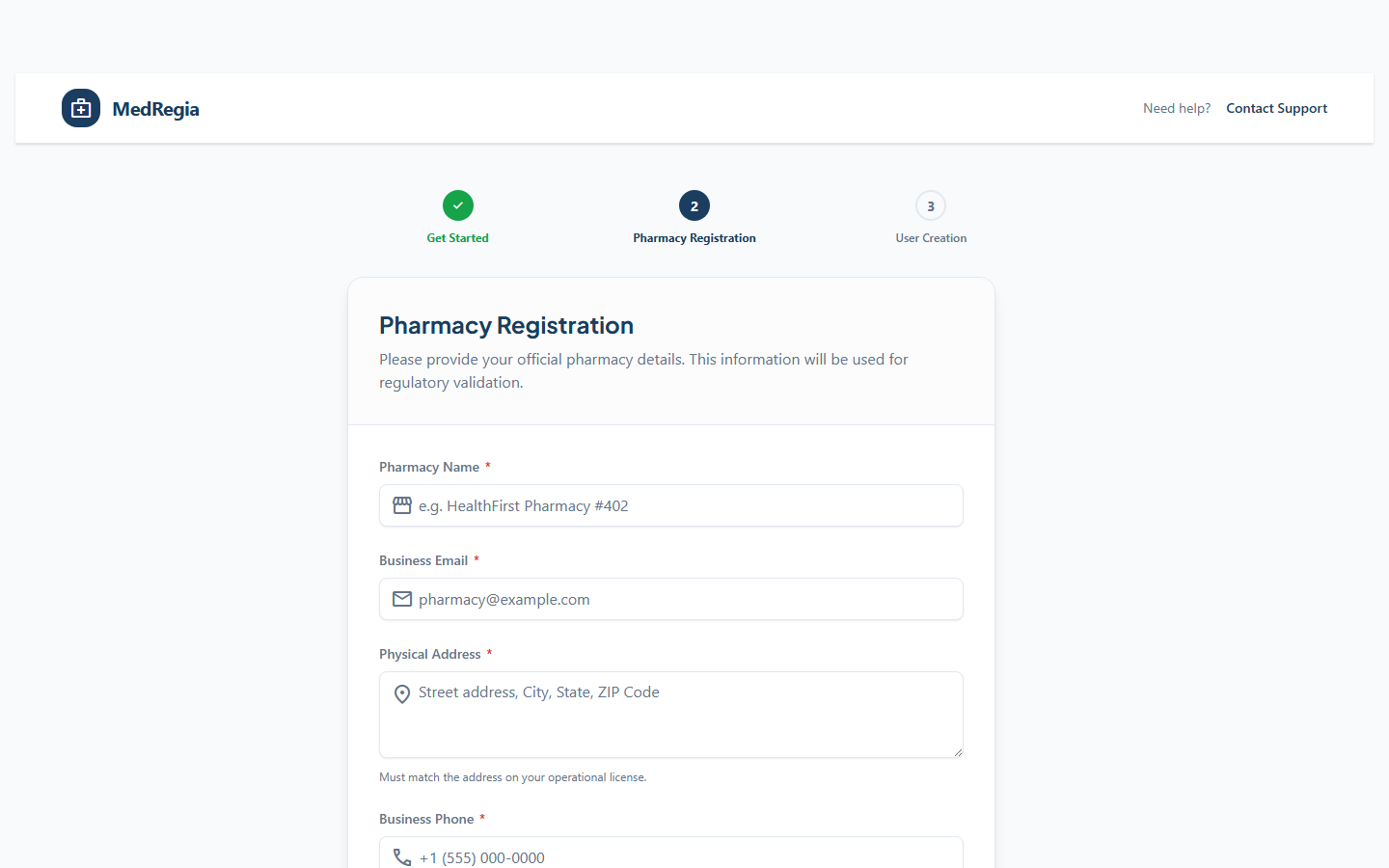
Fill in your pharmacy's information:
| Field | Required | Description |
|---|---|---|
| Pharmacy Name | ✅ | Your pharmacy's official business name |
| Address | — | Physical address |
| Phone | — | Contact number |
| — | Business email address | |
| Drug License Number | — | Your primary drug license number |
Step 2: Admin Account
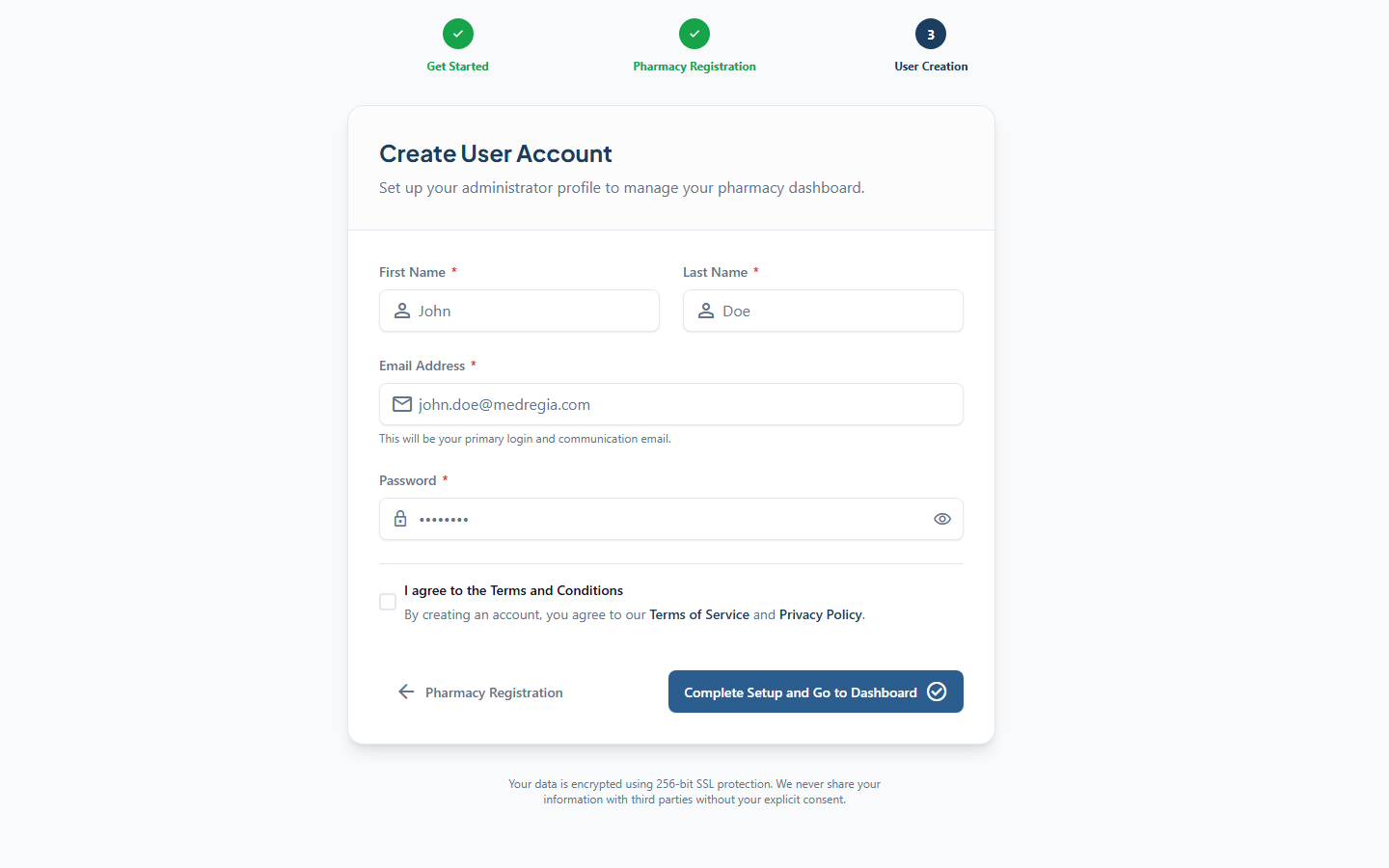
Create the administrator user:
| Field | Required | Description |
|---|---|---|
| First Name | ✅ | Admin's first name |
| Last Name | ✅ | Admin's last name |
| ✅ | Login email (must be unique) | |
| Password | ✅ | Secure password — minimum 8 characters |
Step 3: Complete
Click Complete Setup. The system will:
- Create the pharmacy vendor
- Create the admin user with full access
- Log you in automatically
- Show a prompt to load sample demo data
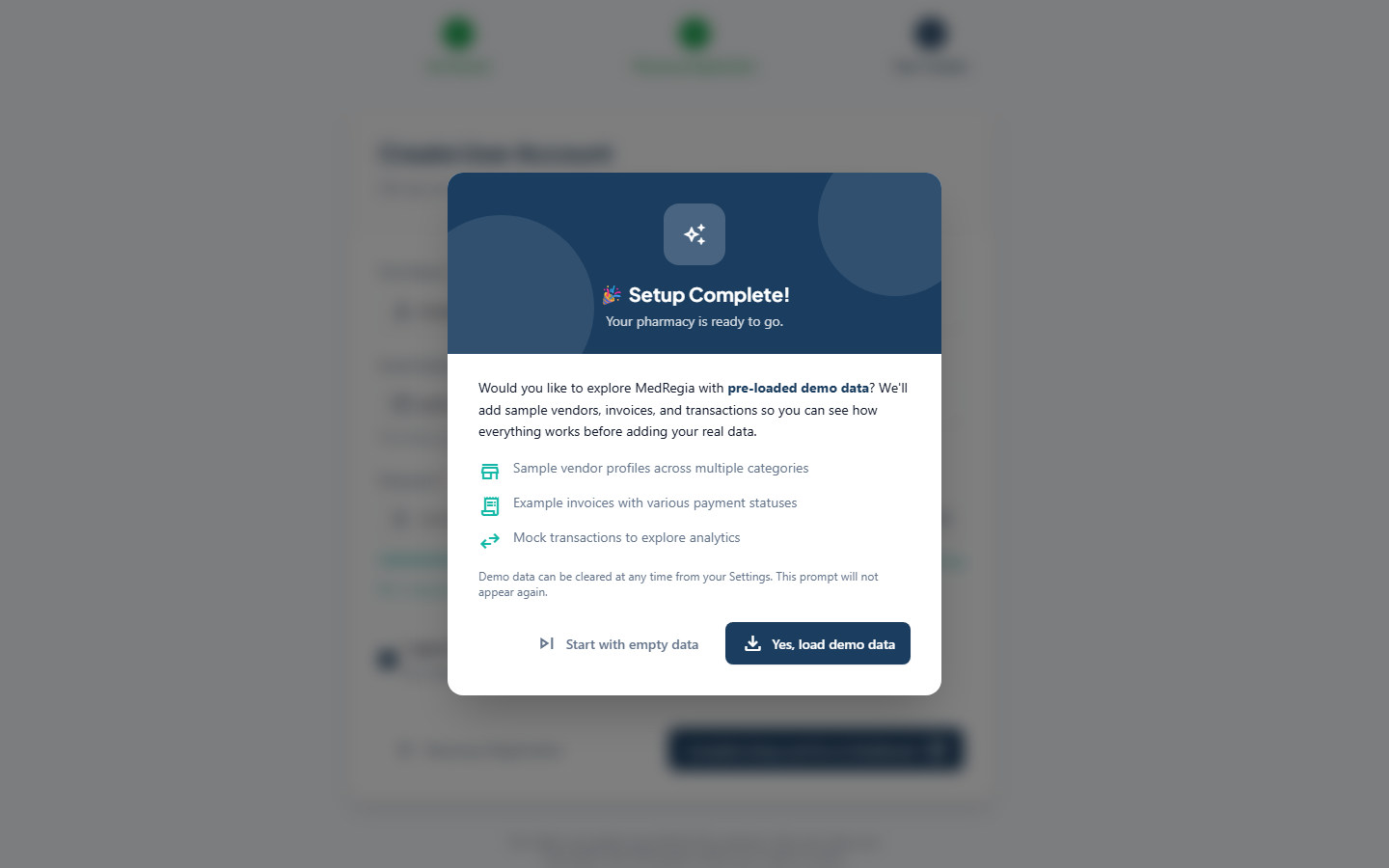
Choose Yes, load demo data to explore MedRegia with pre-loaded vendors, invoices, and transactions.
After Onboarding
Once setup is complete the onboarding page is no longer accessible.
The next step is to add your team members →.
TIP
The admin account created during onboarding has is_admin = true — this means it bypasses all permission checks and has full access to everything. Create additional staff accounts with appropriate roles for day-to-day use.