
Appearance
Vendors
The Vendors section manages all your pharmaceutical suppliers — the companies you buy drugs and medical products from.
Permission required:
Vendor:Read(to view),Vendor:Create/Update/Delete(to modify)
Viewing Vendors
Navigate to Vendors in the left sidebar.
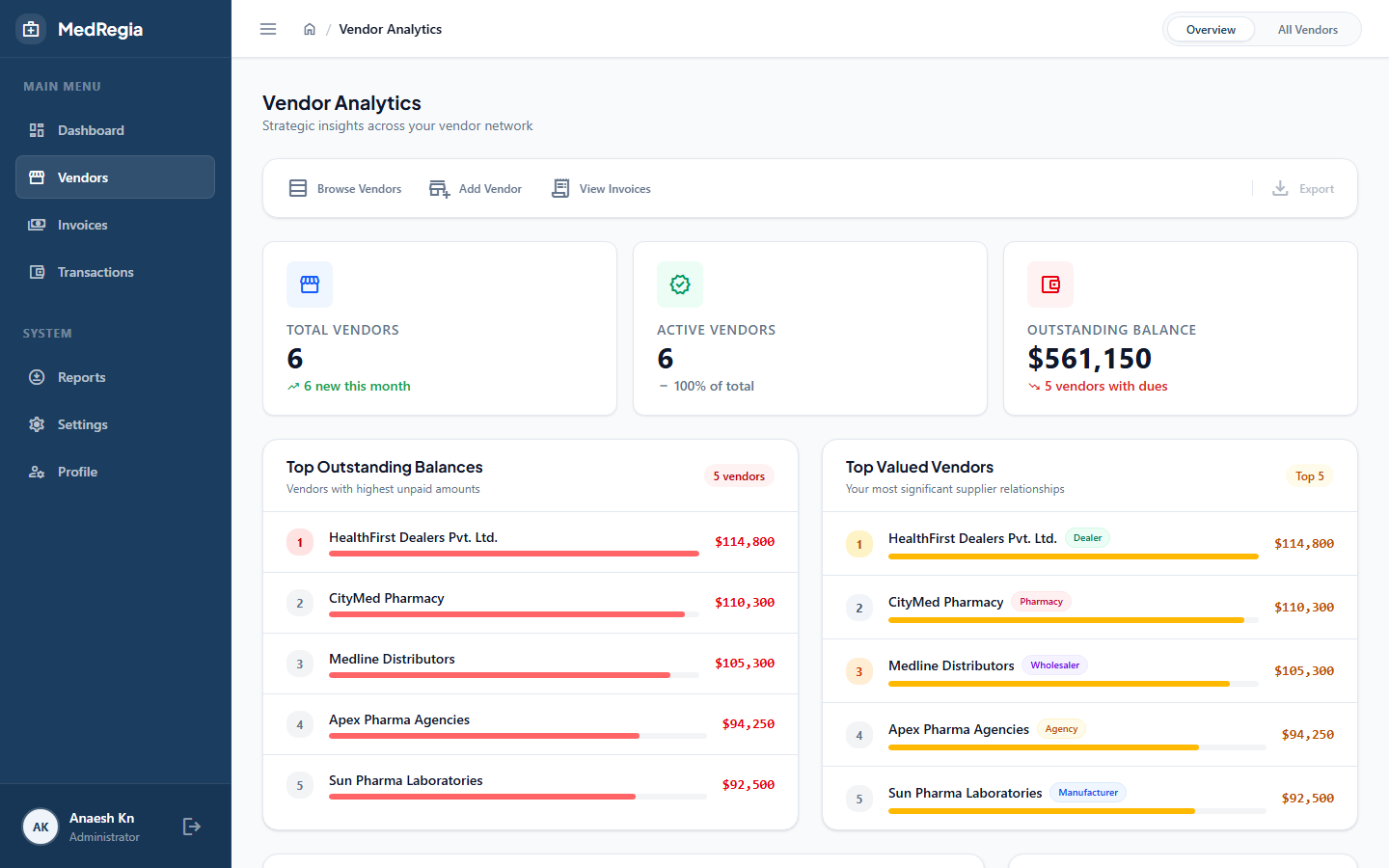
The vendor list shows:
- Vendor name and type
- Outstanding balance (money still owed)
- Total invoice value (all invoices)
- Total paid amount
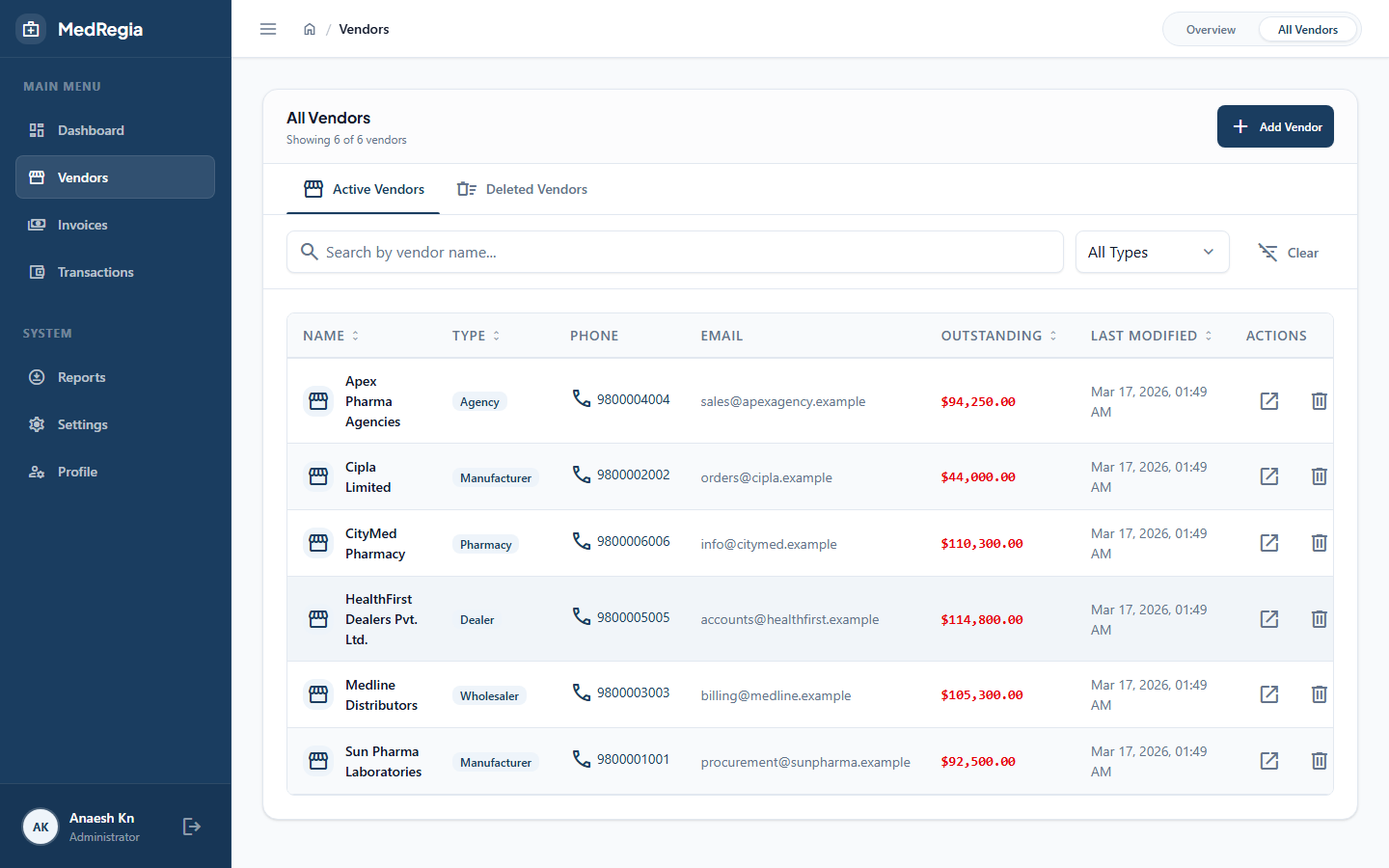
Filtering & Searching
| Filter | Description |
|---|---|
| Search | Type any part of a vendor's name to filter the list |
| Type | Filter by vendor type (Manufacturer, Wholesaler, Agency, Dealer, Pharmacy) |
| Sort | Sort by Name, Type, or Outstanding Balance |
Pagination
The list shows 10 vendors per page by default. Use the page controls at the bottom to navigate.
Vendor Types
| Type | Description |
|---|---|
| Manufacturer | Company that produces pharmaceutical products |
| Wholesaler | Bulk distributor |
| Agency | Authorised sales agent |
| Dealer | Local reseller |
| Pharmacy | Another pharmacy |
Own Pharmacy
The OwnPharmacy type is special — it represents your own pharmacy and is created only during the onboarding setup. It cannot be selected when creating regular vendors.
Creating a Vendor
- Click + New Vendor in the top-right corner
- Fill in the vendor details:
- Name (required) — official business name
- Type (required) — select from the vendor type list
- Address — physical address
- Phone — contact number
- Email — contact email
- Drug License Number 1 — primary license
- Drug License Number 2 — secondary license
- Additional License Numbers — add more if needed
- Click Save
Editing a Vendor
- Click on any vendor in the list to open their detail page
- Click the Edit button
- Update the fields and click Save
Vendor Detail Page
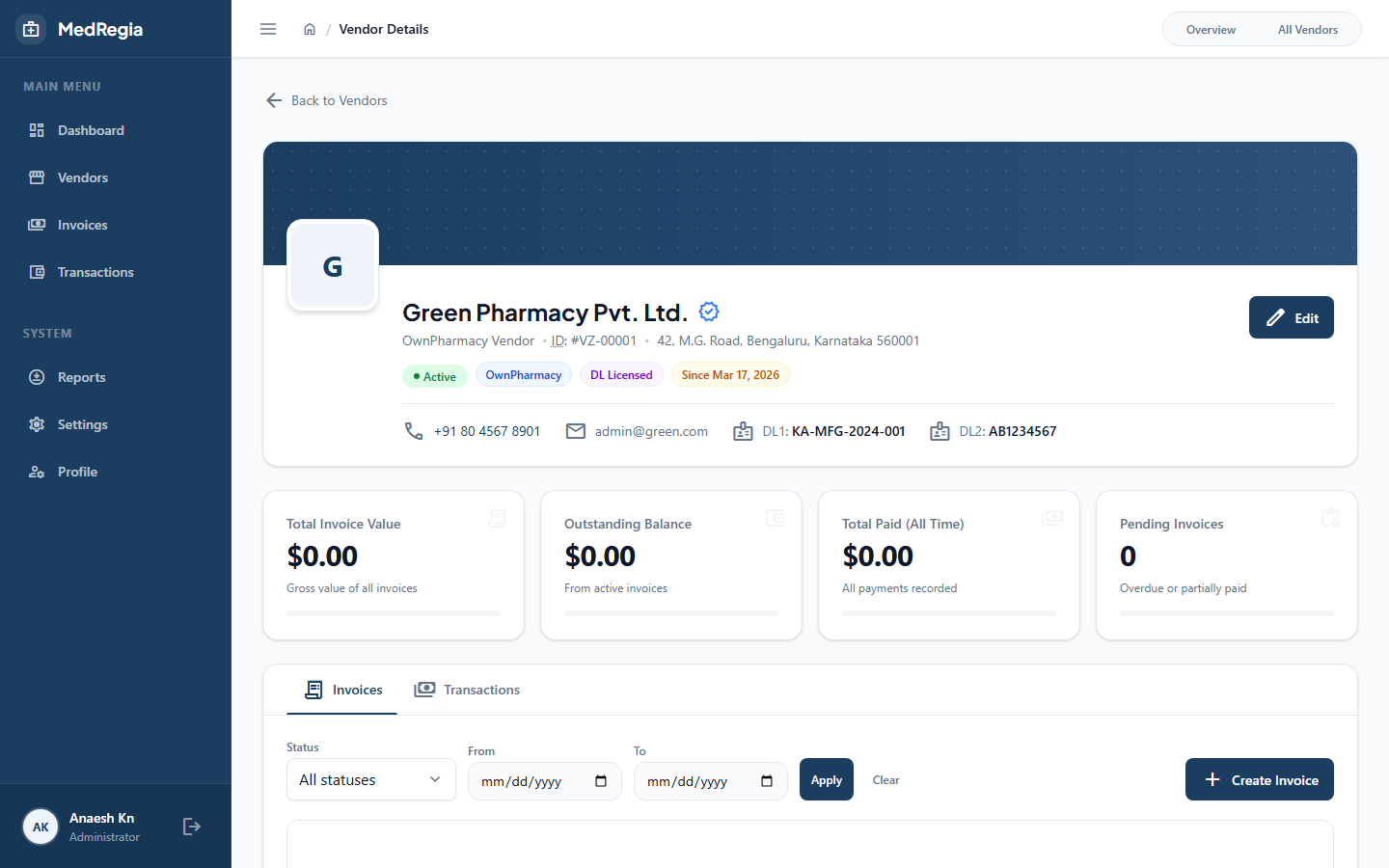
The vendor detail page shows:
- All vendor information
- Financial summary — outstanding balance, total invoiced, total paid
- Invoices tab — all invoices raised against this vendor
- Transactions tab — all payments recorded for this vendor
Deleting a Vendor
Vendors are soft-deleted — they are hidden from the list but all their invoice and transaction history is preserved.
- Open the vendor detail page
- Click Delete
- Optionally enter a reason
- Confirm
WARNING
Deleting a vendor does not delete their invoices or transactions — those remain in the system for record-keeping.
Downloading the Vendor Report
Click the Export Excel button on the vendor list page to download a .xlsx file of all active vendors.
Permission required:
Vendor:Read