
Appearance
Transactions
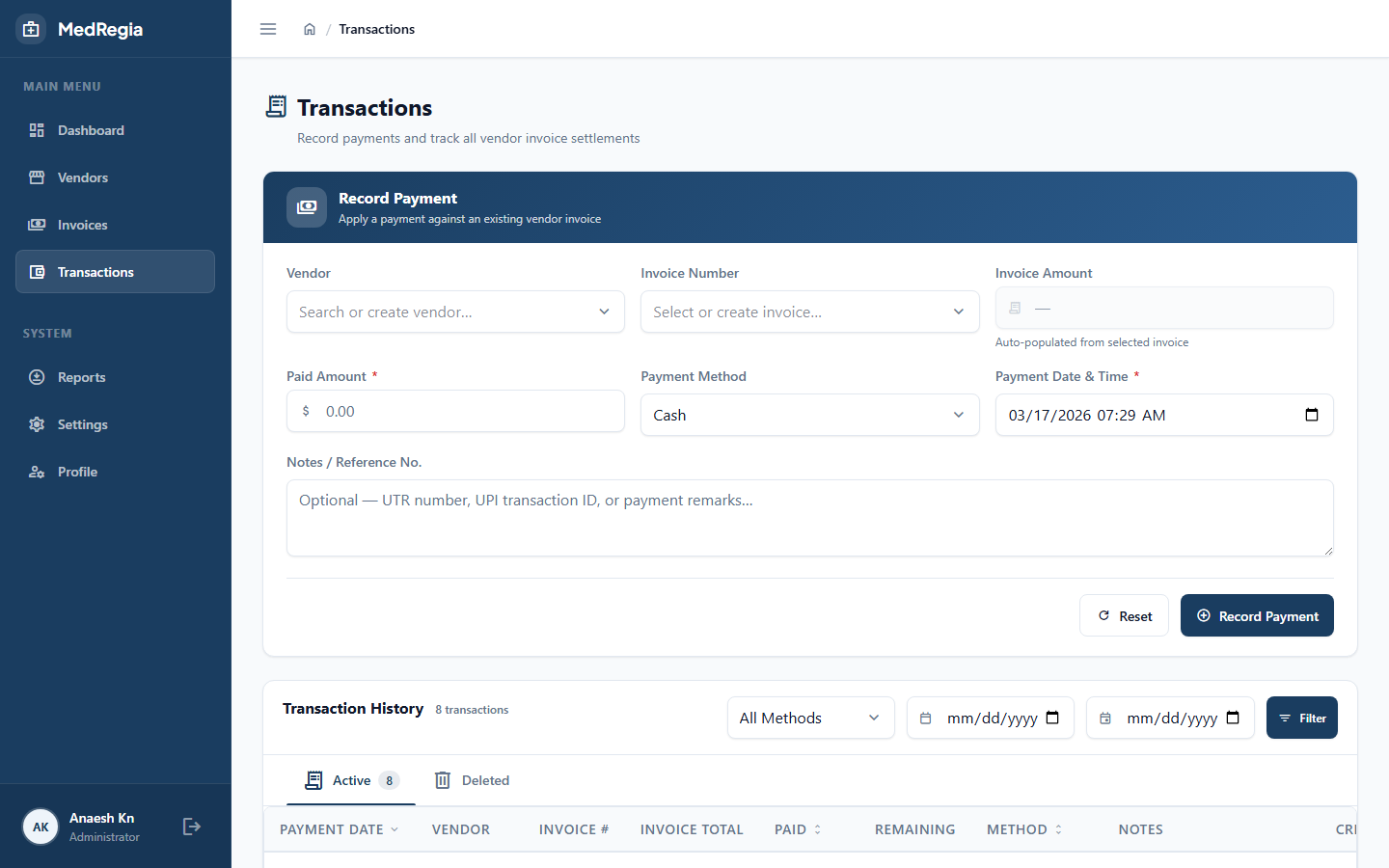
The Transactions section records individual payments made against invoices.
Permission required:
Transaction:Read(to view),Transaction:Create/Update/Delete(to modify)
What is a Transaction?
A transaction represents a single payment recorded against an invoice.
You can record multiple partial payments against the same invoice — each as a separate transaction.
When you record a transaction:
- The invoice's Paid Amount increases
- The invoice's Pending Amount decreases
- The invoice Status may change to
FullyPaidifpendingAmountreaches 0
Payment Methods
| Method | When to use |
|---|---|
| Cash | Physical cash payment |
| UPI | Mobile UPI payment (PhonePe, Google Pay, etc.) |
| Net Banking | Bank transfer, NEFT, RTGS |
Recording a Payment
From the Invoice Detail Page (Recommended)
- Open the invoice you want to pay
- Go to the Transactions tab
- Click + Add Payment
- Fill in:
- Amount (required) — the payment amount
- Payment Method (required) — Cash, UPI, or Net Banking
- Transaction Date (required) — date the payment was made
- Description — optional reference note (e.g. UTR number)
- Click Save
From the Transactions List Page
- Navigate to Transactions in the sidebar
- Click + New Transaction
- Select the Invoice from the dropdown
- Fill in the same fields as above
Viewing Transactions
Navigate to Transactions in the left sidebar.
Filtering Options
| Filter | Description |
|---|---|
| Invoice | Show transactions for a specific invoice |
| Payment Method | Filter by Cash, UPI, or Net Banking |
| Date Range | Filter by transaction date |
| Sort | Sort by transaction date, amount, or payment type |
Transaction Detail
Click any transaction to view:
- All transaction fields
- The related invoice details (invoice number, vendor, amounts)
Editing a Transaction
- Open the transaction detail page
- Click Edit
- Update and save
Deleting a Transaction
Transactions are soft-deleted:
- Open the transaction detail page
- Click Delete
- Optionally enter a reason
- Confirm
WARNING
Deleting a transaction will increase the invoice's pendingAmount again. The invoice status may change from FullyPaid back to PartiallyPaid or Overdue.
Downloading the Transaction Report
Click Export Excel on the transactions list page.
Permission required:
Transaction:Read